Windows supports mice with multiple buttons and a scroll wheel. Windows generates mouse messages whenever the user moves the mouse pointer, presses or releases a mouse button, or rotates the mouse wheel within either the client area or the non-client area of a window. The non-client area consists of the window frame, title bar, menu bar, scroll bars, and window controls such as the minimize, maximize, and close buttons.
Some Common Client Area Mouse Messages
WM_MOUSEMOVE- Generated when the mouse moves over the client area of a window.
WM_LBUTTONDBLCLK – Left mouse button pressed twice within the double-click time.
WM_LBUTTONDOWN- Left mouse button pressed.
WM_LBUTTONUP – Left mouse button released.
WM_RBUTTONDBLCLK – Right mouse button pressed twice within the double-click time
WM_RBUTTONDOWN – Right mouse button pressed.
WM_RBUTTONUP – Right mouse button released.
WM_MBUTTONDBLCLK – Middle mouse button clicked twice within the double-click time.
WM_MBUTTONDOWN – Middle mouse button pressed.
WM_MBUTTONUP – Middle mouse button released.
WM_SETCURSOR – The mouse cursor needs to change.
When an application receives a mouse message, the lParam value contains the cursor’s x and y position. These coordinates are relative to the upper-left corner of the client area. To retrieve the x and y values, the most common method is to use the GET_X_LPARAM and GET_Y_LPARAM macros.
xPos = GET_X_LPARAM(lParam);
yPos = GET_Y_LPARAM(lParam);
The value of wParam contains information about the state of the mouse and keyboard. It may contain any combination of the following values –
MK_LBUTTON – Posted when the user presses the left mouse button
MK_MBUTTON – Posted when the user presses the middle mouse button
MK_RBUTTON – Posted when the user presses the right mouse button
MK_SHIFT – Posted when the user presses the shift button
MK_CONTROL – Posted when the user presses the control button
MK_XBUTTON1 – Posted when the user releases the first or second X button
Note: Modern versions of the Windows SDK provide the GET_X_LPARAM() and GET_Y_LPARAM() macros, which correctly handle signed mouse coordinates on multi-monitor systems. These macros are not available in Visual Studio 98, so the examples in this book use LOWORD() and HIWORD() for compatibility.
Example
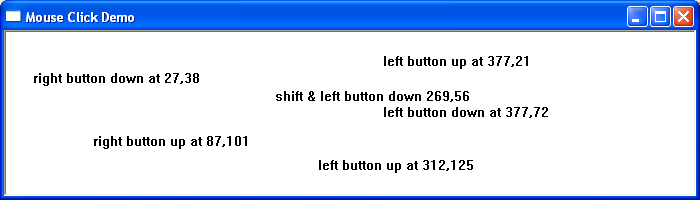
The following program demonstrates mouse and keyboard messages by responding to mouse clicks and displaying the relevant status information at the associated mouse click position on the screen.
Some Common Non-Client Area Mouse Messages
WM_NCLBUTTONDOWN – Left mouse button pressed.
WM_NCLBUTTONUP – Left mouse button released.
WM_NCLBUTTONDBLCLK – Left mouse button clicked twice within the double-click time
WM_NCMBUTTONDOWN – Middle mouse button pressed.
WM_NCMBUTTONUP – Middle mouse button released.
WM_NCMBUTTONDBLCLK – Middle mouse button clicked twice within the double-click time
WM_NCRBUTTONDOWN – Right mouse button pressed.
WM_NCRBUTTONUP – Right mouse button released.
WM_NCRBUTTONDBLCLK – Right mouse button clicked twice within the double-click time
WM_NCMOUSEMOVE – Generated when the mouse moved over the non-client area of a window
WM_NCHITTEST – Tests what type of object the cursor is over (border, caption, client area, etc.)
The lParam value contains the screen position information. The x and y coordinates of the cursor are stored using the POINTS structure. These coordinates are relative to the upper-left corner of the screen. Screen coordinates can be converted to client coordinates using the API function ScreenToClient().
Detecting the Non-Client Area with WM_NCHITTEST
The WM_NCHITTEST message can be used to determine what part of a window the cursor is positioned over, such as the border, caption, or client area. The return value of the DefWindowProc function indicates where in the window’s non-client area the event occurred:
case WM_NCHITTEST:
hittest = DefWindowProc(hwnd, message, wParam, lParam);
if(HTCLIENT == hittest)
{
}
A selection of these return codes is shown in the table below.
HTCAPTION – The title bar.
HTCLOSE- The close button.
HTGROWBOX – The restore button (same as HTSIZE).
HTHSCROLL -The window’s horizontal scroll bar.
HTMENU – The menu bar.
HTREDUCE – The minimize button.
HTSIZE – The restore button (same as HTGROWBOX).
HTSYSMENU – The system menu box.
HTVSCROLL -The window’s vertical scroll bar.
HTZOOM -The maximize button
Example
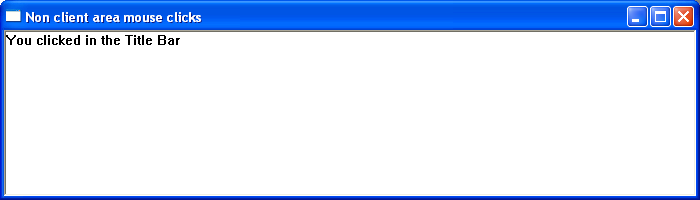
The following short program demonstrates non-client area messages by responding to mouse clicks within the non-client area. Clicking in the title bar, the restore button, the close button, the maximise button, the Windows border or the system menu will output a relevant message within the client area. To close the window, double-click anywhere within the non-client area
The Mouse Wheel
The WM_MOUSEWHEEL message is sent when the mouse wheel is rotated. The lParam value contains the cursor’s x and y coordinates in screen coordinates. These coordinates are relative to the upper-left corner of the screen and can be converted to client-area coordinates using the ScreenToClient function.
The high-order word of wParam indicates the distance the wheel has been rotated, expressed in multiples of 120. A positive value indicates a forward rotation (away from the user), while a negative value indicates a backward rotation (toward the user).
The low-order word of wParam indicates the state of various virtual keys, such as Ctrl or Shift, at the time the message was generated.
fwKeys = LOWORD(wParam); // key flag
szDelta = (short) HIWORD(wParam); // wheel rotation
xPos = (short) LOWORD(lParam); // horizontal position of pointer
yPos = (short) HIWORD(lParam); // vertical position of pointer
Mouse wheel support in Win32 applications was introduced in the late 1990s with the addition of the WM_MOUSEWHEEL message to the Windows API. Although the operating system supported the mouse wheel (beginning with Windows 98), early development environments such as Visual Studio 98 often shipped with older Windows header files that did not define the new constants and macros. As a result, programmers using these older headers sometimes needed to manually define values such as WM_MOUSEWHEEL and WHEEL_DELTA, even though the message itself was fully supported by the operating system.
Windows also supports additional mouse messages for extra mouse buttons that are commonly found on modern mice. These buttons are typically referred to as X buttons. The messages WM_XBUTTONDOWN, WM_XBUTTONUP, and WM_XBUTTONDBLCLK are generated when one of these extra buttons is pressed, released, or double-clicked. The high-order word of wParam identifies which button was used (XBUTTON1 or XBUTTON2), while the low-order word of wParam contains the state of virtual keys such as Ctrl, Shift, or the mouse buttons at the time the message was generated. The lParam value contains the cursor’s x and y coordinates relative to the client area of the window. These messages allow applications to support additional mouse functionality beyond the standard left, right, and middle buttons.
Example
The following example demonstrates mouse wheel scrolling by moving the window contents in response to mouse wheel input.
Capturing the Mouse
A window procedure normally receives mouse messages only when the mouse cursor is positioned over the client or non-client area of the window. However, a program may need to receive mouse messages even when the cursor moves outside the window.
For example, if a mouse button is pressed inside a window but the cursor moves outside the window’s client area before the button is released, the window may not receive the button-up event.
To address this situation, Windows allows an application to capture the mouse so that it continues to receive mouse messages even when the cursor moves outside the window. Once the mouse is captured, the window continues to receive mouse messages until the capture is released or another window captures the mouse.
The mouse is captured using the SetCapture function and released with ReleaseCapture. These functions are typically called in the mouse button-down and button-up message handlers.
Changing the Mouse Icon
The API function SetCursor allows an application to change the mouse cursor. The syntax for this function is:
HCURSOR SetCursor(HCURSOR hCursor);
where hCursor is a handle to the cursor. The cursor can be created using the CreateCursor() function or loaded using the LoadCursor() or LoadImage() functions. If this parameter is NULL, the cursor is removed from the screen.
The return value is a handle to the previous cursor, or NULL if there was no previous cursor.
Double Clicks
For a window to receive double-click messages, the window class must be configured to request notification of double-click events. This is done by setting the style member of the WNDCLASS structure to CS_DBLCLKS.
wndclass.style=CS_DBLCLKS;
The left and right button double-click messages are WM_LBUTTONDBLCLK and WM_RBUTTONDBLCLK. The contents of lParam and wParam are the same as those used for the corresponding single-click messages.
To set the double-click interval, use the API function SetDoubleClickTime(UINT interval), and to retrieve the current double-click interval, use the function GetDoubleClickTime().
The double-click interval specifies the maximum time, in milliseconds, that can occur between two consecutive mouse button clicks for them to be interpreted as a double-click.