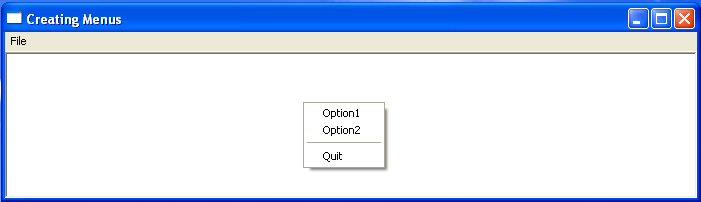
A menu bar is a horizontal bar that is typically displayed immediately below a window’s title bar and contains a list of drop-down menus. These menus can contain menu items, separators, and nested submenus. Individual menu items can be enabled or disabled, checked or unchecked, and may also appear grayed to indicate that they are unavailable.
Menus can be created programmatically or designed using a resource editor provided by many integrated development environments (IDEs). The CreateMenu(), AppendMenu(), and InsertMenu() functions are among the primary Windows API functions used to create and modify menus at run time.-
Create a Menu
To create a menu use the CreateMenu() API function. The menu is initially empty. The prototype of this function is
HMENU CreateMenu();
If the function succeeds, the return value is a handle to the newly created menu. If the function fails, the return value is NULL.
Adding a Menu Item
To add items to the top-level menu, drop-down menu, submenu or context menu use the AppendMenu API function. The prototype is –
BOOL AppendMenu(HMENU hMenu,UINT uFlags,UINT_PTR uIDNewItem,LPCSTR lpNewItem);
where
hMenu – A handle to the menu bar, drop-down menu, submenu, or shortcut menu to be changed.
uFlags -Controls the appearance and behaviour of the new menu item.
uIDNewItem – The identifier of the new menu item or, if the uFlags parameter is set to MF_POPUP, a handle to the drop-down menu or submenu.
lpNewItem -The content of the menu item. Can be one of the following: MF_BITMAP; MF_OWNERDRAW; MF_STRING
If the function succeeds, the return value is nonzero. If the function fails, the return value is zero.
For further detailed reading
https://docs.microsoft.com/en-us/windows/win32/api/winuser/nf-winuser-appendmenua
Dynamically Modifying Menus
Modify a Menu
The ModifyMenu function changes an existing menu item. The prototype of this function is –
BOOL ModifyMenu(HMENU hMnu,UINT uPosition,UINT uFlags,UINT uIDNewItem,LPCTSTR lpNewItem);
hMnu – Handle to the menu to be changed.
uPosition – Specifies the menu item to be changed, as determined by the uFlags parameter.
uFlags – Specifies flags that control the interpretation of the uPosition parameter and the content, appearance, and behaviour of the menu item.
uIDNewItem – Specifies either the identifier of the modified menu item or the handle to the drop-down menu or submenu.
lpNewItem – Pointer to the content of the changed menu item.
Returns nonzero if the function is successful; otherwise zero.
For further detailed reading
https://docs.microsoft.com/en-us/windows/win32/api/winuser/nf-winuser-modifymenua
Insert a Menu Item
To insert a new menu item at the specified position in a menu use the IntertMenuItem() API function. The prototype is –
BOOL InsertMenuItem(HMENU hmenu,UINT item,BOOL fByPosition,LPCMENUITEMINFOA lpmi);
hMenu – Handle to the menu where the new menu item will be inserted.
uItem – Identifier or position of the menu item before which to insert the new item.
fByPosition – Value specifying the meaning of uItem. If this parameter is FALSE, the uItem parameter is a menu item identifier. Otherwise, it is a menu item position.
lpmii – Pointer to a MENUITEMINFO structure that contains information about the new menu item.
Returns nonzero if the function is successful; otherwise zero.
For further detailed reading.
https://docs.microsoft.com/en-us/windows/win32/api/winuser/nf-winuser-insertmenuitema
Deleting a Menu
Deletes a menu item and the submenu associated with it, if any. The prototype of this function is –
BOOL DeleteMenu(HMENU hMenu,UINT uPosition, UINT uFlags);
Where
hMenu– Handle to the menu to be changed.
uPosition – Specifies the menu item that is to be deleted
nFlags – Is used to interpret nPosition
Returns nonzero if the function is successful; otherwise zero.
Some Useful Menu-Related Messages
WM_COMMAND – Sent when the user selects an active menu item. The value of the LOWORD(wParam) contains the menu item selected.
WM_INITMENU – Sent just before a menu is displayed, allowing an application to modify the menu before the user makes a selection. Windows sends the WM_INITMENU message once each time a menu is activated, whether by using the mouse or the keyboard. The wParam parameter contains a handle to the menu being initialised.
For further reading https://docs.microsoft.com/en-us/windows/win32/menurc/wm-initmenu
WM_MENUSELECT – Sent to a menu’s owner window whenever the user selects or highlights a menu item. The low-order word of the wParam parameter contains the identifier of the selected menu item or the index of the selected submenu, while the high-order word contains one or more menu flags describing the selected item. The lParam parameter contains a handle to the menu that contains the selected item.
For further reading https://docs.microsoft.com/en-us/windows/win32/menurc/wm-menuselect
WM_INITMENUPOPUP – Sent to a menu’s owner window whenever the user selects or highlights a menu item using the mouse or keyboard. The low-order word of the wParam parameter contains either the menu item identifier or the submenu index, depending on the menu flags, while the high-order word contains one or more menu flags. The lParam parameter contains a handle to the menu that contains the selected item (or NULL when the menu is closed).
For further reading https://docs.microsoft.com/en-us/windows/win32/menurc/wm-initmenupopup
The Popup or Context Menu
A popup menu, also known as a context menu, is typically displayed when the user right-clicks a window or control. The term context menu reflects the fact that the commands it contains are relevant to the object or area that was clicked. The TrackPopupMenu() function displays a popup menu at a specified screen position and tracks the user’s selection. A popup menu can be loaded from a menu resource or created dynamically by calling the CreatePopupMenu() function.
The prototype for the TrackPopupMenu is –
BOOL TrackPopupMenu(HMENU hMenu,UINT uFlags,int x,int y,int nReserved,HWND hWnd,const RECT *prcRect);
Where
nFlags – Specifies screen-position and mouse-position flags.
Use one of the following flags to specify how the function positions the shortcut menu horizontally.
TPM_CENTERALIGN – Centers the shortcut menu horizontally relative to the coordinate specified by the x parameter.
TPM_LEFTALIGN – Positions the shortcut menu so its left side is aligned with the coordinate specified by the x parameter.
TPM_RIGHTALIGN – Positions the shortcut menu so its right side is aligned with the coordinate specified by the x parameter.
Use one of the following flags to specify how the function positions the shortcut menu vertically.
TPM_BOTTOMALIGN – Positions the shortcut menu so its bottom side is aligned with the coordinate specified by the y parameter.
TPM_TOPALIGN – Positions the shortcut menu so its top side is aligned with the coordinate specified by the y parameter.
TPM_VCENTERALIGN – Centers the shortcut menu vertically relative to the coordinate specified by the y parameter.
x – Specifies the horizontal position in screen coordinates of the pop-up menu.
y – Specifies the vertical position in screen coordinates of the top of the menu on the screen.
pWnd – Identifies the window that owns the pop-up menu.
lpRect – Ignored.
Returns the result of calling TrackPopupMenu
Example
The code section below creates a window with a top-level menu, a single drop-down menu and two selectable menu items. In addition, the same menu options are available via a “right-click” context menu. Selecting either will produce a message beep.