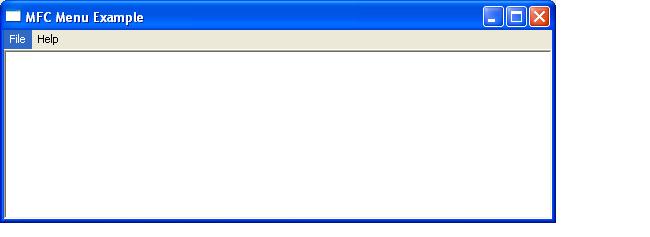
In Windows, a menu bar is a horizontal bar displayed immediately below the title bar. It typically contains a collection of drop-down menus such as File, Edit, and Help. Each drop-down menu can contain commands, separators, or nested submenus.
Although menus can be created entirely in code, most MFC applications define their menus in a resource file and then load them at run time. Creating menus programmatically is useful when menu items need to be generated dynamically.
Adding Menus
To create and maintain menus programmatically, the developer will need to instantiate a class CMenu object and then use one of the following member functions to create the menu items.
CreateMenu
Is used to create a top-level menu. The prototype of this function is
BOOL CreateMenu( );
Returns nonzero if the menu creation was successful. 0 if menu creation failed
CreatePopupMenu
Creates a pop-up menu and attaches it to the CMenu object. The prototype of this function is
BOOL CreatePopupMenu( );
Return Nonzero if the pop-up menu was successfully created; 0 if menu creation failed
AppendMenu
Appends a new item to the end of a menu. The prototype of this function is
BOOL AppendMenu( UINT nFlags, UINT nIDNewItem = 0, LPCTSTR lpszNewItem = NULL);
BOOL AppendMenu( UINT nFlags, UINT nIDNewItem, const CBitmap* pBmp );
nFlags – Specifies information about the state of the new menu item.
nIDNewItem – Specifies either the command ID of the new menu item or, if nFlags is set to MF_POPUP, the menu handle ( HMENU) of a pop-up menu.
lpszNewItem – Specifies the content of the new menu item.
pBmp – Points to a CBitmap object that will be used as the menu item.
Common values for nFlags include:
MF_STRING– Adds a text menu item.MF_SEPARATOR– Adds a separator line.MF_POPUP– Adds a submenu.MF_CHECKED– Displays a check mark beside the item.MF_GRAYED– Displays the item disabled.
For further detailed reading
https://docs.microsoft.com/en-us/cpp/mfc/reference/cmenu-class?view=vs-2019#appendmenu
The on_command Macro
The ON_COMMAND message-map macro maps a command message to a member function. It is most commonly used to respond to menu selections, but it can also be used to handle commands generated by toolbar buttons, accelerator keys, and other controls.
The prototype for this macro is
ON_COMMAND(id, memberFunction)
Where
- id – Specifies the command identifier associated with the menu item or control.
- memberFunction – Specifies the member function that will process the command.
The corresponding message handler has the prototype
afx_msg void OnMsgName();
For example, the following message-map entry associates the menu item ID_FILE_OPEN with the member function OnFileOpen():
BEGIN_MESSAGE_MAP(CMainFrame, CFrameWnd)
    ON_COMMAND(ID_FILE_OPEN, OnFileOpen)
END_MESSAGE_MAP()
The corresponding handler is
afx_msg void CMainFrame::OnFileOpen()
{
    AfxMessageBox(TEXT("File Open selected"));
}
When the user selects the File Open menu item, MFC automatically routes the command message to OnFileOpen().
The on_command_range Macro
When several menu items perform similar operations, they can all be mapped to a single handler using the ON_COMMAND_RANGE macro.
The prototype for this macro is
ON_COMMAND_RANGE(id1, id2, memberFunction)
Where
- id1 – Specifies the first command identifier in the range.
- id2 – Specifies the last command identifier in the range.
- memberFunction – Specifies the member function that will process all commands in the range.
For this macro to work, the command identifiers must form a contiguous sequence.
The corresponding handler has the prototype
afx_msg void OnMsgName(UINT nID);
Where
- nID – Specifies the command identifier of the selected menu item.
For example:
BEGIN_MESSAGE_MAP(CMainFrame, CFrameWnd)
    ON_COMMAND_RANGE(ID_COLOUR_RED,
                     ID_COLOUR_BLUE,
                     OnSelectColour)
END_MESSAGE_MAP()
The handler can then determine which menu item was selected by examining the value of nID:
void CMainFrame::OnSelectColour(UINT nID)
{
    switch (nID)
    {
        case ID_COLOUR_RED:
            // Handle red.
            break;

        case ID_COLOUR_GREEN:
            // Handle green.
            break;

        case ID_COLOUR_BLUE:
            // Handle blue.
            break;
    }
}
Using ON_COMMAND_RANGE simplifies the message map when several menu items require similar processing and avoids the need to write separate message handlers for each command.
Modifying Menus Programmatically
In addition to creating menus dynamically, menus can all be modified dynamically.
InsertMenu
Inserts an item into a menu at a specified location. The prototype for this function is
BOOL InsertMenu( nPosition, nFlags, nIDNewItem, lpszNewItem );
BOOL InsertMenu( nPosition, nFlags, nIDNewItem, * pBmp );
where
nPosition – Specifies the menu item before the new menu item is inserted.
nFlags – Specifies information about the state of the new menu item
nIDNewItem – Specifies either the command ID of the new menu item or, if nFlags is set to MF_POPUP, the menu handle (HMENU) of the pop-up menu.
lpszNewItem – Specifies the content of the new menu item.
pBmp – Points to a CBitmap object that will be used as the menu item.
Returns nonzero if the function is successful; otherwise 0.
For further reading
https://docs.microsoft.com/en-us/cpp/mfc/reference/cmenu-class?view=vs-2019#insertmenu
DeleteMenu
Deletes a menu item and the submenu associated with it, if any. The prototype of this function is
BOOL DeleteMenu( UINT nPosition, UINT nFlags );
Where
nPosition – Specifies the menu item that is to be deleted
nFlags – Is used to interpret nPosition
Return nonzero if the function is successful; otherwise 0
For further reading
https://docs.microsoft.com/en-us/cpp/mfc/reference/cmenu-class?view=vs-2019#deletemenu
RemoveMenu
Deletes a menu item
BOOL RemoveMenu( UINT nPosition, UINT nFlags );
where
nPosition – Specifies the menu item to be removed.
nFlags – Specifies how nPosition is interpreted
Return nonzero if the function is successful; otherwise 0.
The difference between RemoveMenu and DeleteMenu is that if the item being removed has a submenu, then deletemenu will remove the item and destroys the submenu, too. RemoveMenu removes the item but leaves the submenu extant in memory. The submenu can then be attached to another menu or destroyed later.
Before a menu is modified, the developer will need the CMenu pointer referencing the menu. MFC’s CWnd::GetMenu function returns a CMenu pointer for a window’s top-level menu or NULL if the window doesn’t have a top-level menu-
<code data-enlighter-language="c" class="EnlighterJSRAW">CMenu* pMenu = GetMenu();
if (pMenu != NULL)
{
    pMenu->DeleteMenu(1, MF_BYPOSITION);
}</code>
GetMenu
Before a menu can be modified programmatically, the application must first obtain a pointer to the window’s top-level menu. The CWnd::GetMenu() member function returns a pointer to the window’s menu.
The prototype for this function is
CMenu* GetMenu() const;
Returns a pointer to the window’s menu or NULL if the window does not have a menu.
For example:
CMenu* pMenu = GetMenu();

if (pMenu != NULL)
{
    pMenu->DeleteMenu(1, MF_BYPOSITION);
}
GetSubMenu
A menu bar typically contains one or more drop-down menus. These are represented by CMenu objects and can be accessed using the GetSubMenu() member function.
The prototype for this function is
CMenu* GetSubMenu(int nPos) const;
Where
- nPos – Specifies the zero-based position of the submenu.
Returns a pointer to the requested submenu or NULL if the submenu does not exist.
For example, the following code obtains a pointer to the first menu on the menu bar:
CMenu* pMenu = GetMenu();

if (pMenu != NULL)
{
    CMenu* pFileMenu = pMenu->GetSubMenu(0);
}
The returned pointer can then be used to insert, delete, or modify the items contained within that submenu.
SetMenu
When a menu is created dynamically, it must be attached to a window before it becomes visible. The CWnd::SetMenu() member function associates a menu with a window.
The prototype for this function is
BOOL SetMenu(CMenu* pMenu);
Where
- pMenu – Points to the menu that is to be attached to the window.
Returns nonzero if the function is successful; otherwise 0.
For example:
CMenu menu;
menu.CreateMenu();

// Add menu items.

SetMenu(&menu);
DrawMenuBar
After modifying or replacing a menu, the menu bar should be redrawn so that the changes become visible. This is accomplished using the CWnd::DrawMenuBar() member function.
The prototype for this function is
void DrawMenuBar();
The function redraws the menu bar for the specified window using the current menu.
For example:
CMenu* pMenu = GetMenu();

if (pMenu != NULL)
{
    pMenu->AppendMenu(MF_STRING, ID_NEWITEM, TEXT("New Item"));
    DrawMenuBar();
}
Calling DrawMenuBar() is particularly useful after adding, removing, or modifying menu items programmatically, ensuring that the changes are immediately reflected in the application’s user interface.
Updating Menu Items
ON_UPDATE_COMMAND_UI
The ON_UPDATE_COMMAND_UI message-map macro allows an application to update the appearance of menu items immediately before they are displayed. It is commonly used to enable or disable menu items, display check marks, or modify menu text based on the application’s current state.
The message-map entry has the form
ON_UPDATE_COMMAND_UI(id, memberFunction)
Where
- id – Specifies the command identifier of the menu item.
- memberFunction – Specifies the function that updates the menu item.
The corresponding handler has the prototype
afx_msg void OnUpdateCommand(CCmdUI* pCmdUI);
The CCmdUI object provides several useful member functions, including
Enable()– Enables or disables the menu item.SetCheck()– Adds or removes a check mark.SetText()– Changes the displayed text of the menu item.
This mechanism allows menu items to reflect the current state of the application automatically whenever the menu is displayed.
The ON_UPDATE_COMMAND_UI macro enables or disables a menu item, checks or unchecks it, or changes its appearance immediately before the menu is displayed.
ON_UPDATE_COMMAND_UI(ID_EDIT_COPY, OnUpdateCopy)
The corresponding handler is
void OnUpdateCopy(CCmdUI* pCmdUI);
where pCmdUI provides functions such as
pCmdUI->Enable(TRUE);
pCmdUI->SetCheck(TRUE);
pCmdUI->SetText(_T("New Text"));
Changes the command ID, text, or other characteristics of a menu item.
BOOL ModifyMenu( nPosition, nFlags, nIDNewItem, lpszNewItem );
BOOL ModifyMenu( nPosition, nFlags, nIDNewItem, pBmp );
NPosition – Specifies the menu item to be changed.
nFlags, nIDNewItem, lpszNewItem-see insert menu
For further reading
https://docs.microsoft.com/en-us/cpp/mfc/reference/cmenu-class?view=vs-2019#modifymen
The Popup or Context Menu
Popup or context menus are those which generally appear when the user right-clicks. This menu is often referred to as a context menu because the options in the menu relate to what was right-clicked. The x and y coordinates passed to TrackPopupMenu() are screen coordinates. If the mouse position is obtained from a client-area message such as WM_RBUTTONDOWN, convert the coordinates using ClientToScreen() before displaying the menu.The popup menu can be loaded from an existing resource or created dynamically with a call to the function CreatePopupMenu().
The cmenu member function TrackPopupMenu() displays a context menu. The function prototype is
BOOL TrackPopupMenu (UINT nFlags, int x, int y, CWnd* pWnd, LPCRECT lpRect = NULL)
Where
nFlags – Specifies screen-position and mouse-position flags.
Use one of the following flags to specify how the function positions the shortcut menu horizontally.
TPM_CENTERALIGN – Centers the shortcut menu horizontally relative to the coordinate specified by the x parameter.
TPM_LEFTALIGN – Positions the shortcut menu so its left side is aligned with the coordinate specified by the x parameter.
TPM_RIGHTALIGN – Positions the shortcut menu so its right side is aligned with the coordinate specified by the x parameter.
Use one of the following flags to specify how the function positions the shortcut menu vertically.
TPM_BOTTOMALIGN – Positions the shortcut menu so its bottom side is aligned with the coordinate specified by the y parameter.
TPM_TOPALIGN – Positions the shortcut menu so its top side is aligned with the coordinate specified by the y parameter.
TPM_VCENTERALIGN – Centers the shortcut menu vertically relative to the coordinate specified by the y parameter.
x – Specifies the horizontal position in screen coordinates of the pop-up menu.
y – Specifies the vertical position in screen coordinates of the top of the menu on the screen.
pWnd – Identifies the window that owns the pop-up menu.
lpRect – Ignored.
Returns the result of calling TrackPopupMenu
Example
The short program below demonstrates a simple menu structure. Clicking file>new will produce a messagebox and file>exit will close the application. A right-click will produce a context menu containing the same menu items as the main menu.