Windows supports two types of bitmap: device-independent bitmaps (DIBs) and device-dependent bitmaps (DDBs).
A device-independent bitmap (DIB) stores image data in a standard format that is independent of the display hardware. Because the bitmap contains all the information required to describe the image, it can be copied between different computers, printers and display devices while maintaining a consistent appearance. DIBs are therefore the preferred format for storing bitmap files on disk and exchanging bitmap images between applications.
A device-dependent bitmap (DDB) is created in a format that is optimised for a particular display device. Since the bitmap format depends on the capabilities of the target device, it may not be suitable for use on different hardware without conversion. DDBs are generally used for fast screen drawing because they are stored in a format that is efficient for the graphics device currently being used.
The CBitmap Class
The CBitmap class encapsulates a Windows GDI bitmap and provides member functions for creating, loading and manipulating bitmap images. A CBitmap object normally represents a device-dependent bitmap (DDB). Although MFC provides the CBitmap class for GDI bitmaps, it does not provide a dedicated wrapper class for device-independent bitmaps. DIBs are normally manipulated using the Win32 API.
Before a bitmap can be displayed it must first be loaded into a CBitmap object. This is commonly achieved by loading a bitmap resource using the LoadBitmap() member function.
BOOL LoadBitmap(LPCTSTR lpszResourceName);
BOOL LoadBitmap(UINT nIDResource);
where
lpszResourceName – Specifies the name of the bitmap resource.
nIDResource – Specifies the resource identifier of the bitmap resource.
Returns non-zero if successful; otherwise 0.
Displaying a Bitmap
Displaying a bitmap involves copying the bitmap from memory onto the window’s device context.
The usual procedure is:
- Create a device context for the window.
- Create a compatible memory device context.
- Select the bitmap into the memory device context.
- Copy the bitmap from the memory device context to the window using BitBlt().
For example
CClientDC dc(this);          // Window device context

CDC memDC;
memDC.CreateCompatibleDC(&dc);

memDC.SelectObject(&bmp);

dc.BitBlt(x, y, width, height,
          &memDC, 0, 0, SRCCOPY);
where
x, y – Destination coordinates.
width, height – Size of the bitmap to copy.
SRCCOPY – Copies the source bitmap directly to the destination.
The use of a memory device context prevents unnecessary screen flicker and allows graphics to be composed in memory before being displayed.
CreateCompatibleDC()
The CreateCompatibleDC() member function creates a memory device context that is compatible with an existing device context.
BOOL CreateCompatibleDC(CDC* pDC);
where
pDC – Points to the device context with which the new memory device context should be compatible. Passing NULL creates a memory device context compatible with the application’s current display.
Returns non-zero if successful; otherwise 0.
A compatible memory device context is typically used together with BitBlt() for bitmap drawing and double buffering.
BitBlt()
The BitBlt() (Bit Block Transfer) member function copies a rectangular block of pixels from one device context to another.
BOOL BitBlt(
    int x,
    int y,
    int nWidth,
    int nHeight,
    CDC* pSrcDC,
    int xSrc,
    int ySrc,
    DWORD dwRop
);
where
x, y – Destination coordinates.
nWidth, nHeight – Width and height of the area to copy.
pSrcDC – Source device context.
xSrc, ySrc – Upper-left corner of the source image.
dwRop – Raster operation defining how the pixels are copied.
Returns non-zero if successful; otherwise 0.
The most commonly used raster operation is
SRCCOPY – Copies the source bitmap directly to the destination.
Other useful raster operations include:
| Raster operation | Description |
|---|---|
| SRCCOPY | Copies source directly to destination. |
| SRCAND | Performs a bitwise AND between source and destination. |
| SRCPAINT | Performs a bitwise OR between source and destination. |
| SRCINVERT | Performs a bitwise XOR between source and destination. |
| NOTSRCCOPY | Copies the inverted source bitmap. |
| BLACKNESS | Fills the destination rectangle with black. |
| WHITENESS | Fills the destination rectangle with white. |
Double Buffering
One of the most common uses of a memory device context is double buffering.
Instead of drawing directly onto the screen, all graphics are first drawn onto an off-screen bitmap stored in memory. When drawing is complete, the entire image is copied to the window using BitBlt(). Because the user only sees the finished image, screen flicker is greatly reduced.
Double buffering is widely used in drawing programs, animation, games and applications that frequently repaint their windows.
Repainting the Screen Using Bitmaps
A memory bitmap can also be used to maintain a permanent copy of the window contents.
Instead of redrawing every graphical object whenever a WM_PAINT message is received, the application draws all graphics to an off-screen bitmap. Whenever the window requires repainting, the bitmap is simply copied back to the screen using BitBlt(). This technique simplifies repainting and is considerably faster than recreating every graphical object individually.
Example
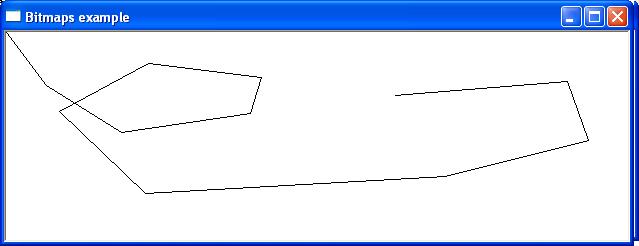
The following example creates a simple drawing program. Each mouse click draws a line from the previous cursor position to the current cursor position. Rather than drawing directly to the screen, all drawing operations are performed on an off-screen bitmap stored in a compatible memory device context. Whenever the window receives a repaint request, the contents of the memory bitmap are copied back to the screen using BitBlt(), allowing the drawing to be restored without maintaining a list of every line drawn.