A child window is a window that exists inside and is owned by a parent window. Child windows are commonly used to implement controls such as buttons, edit boxes, list boxes, and scroll bars. They receive keyboard and mouse input when they have the input focus and notify the parent window of significant events, such as button clicks or changes to their state, by sending notification messages.
Standard controls are created by instantiating one of the MFC control classes and calling the object’s Create() member function.
Windows makes the classic controls available to the application programs it hosts by registering six predefined WNDCLASS’s. The control types, their WNDCLASS’s, and the corresponding MFC classes are shown in the following table.
| Control Type | WNDCLASS | MFC Class |
|---|---|---|
| Buttons | “BUTTON” | CButton |
| List boxes | “LISTBOX” | CListBox |
| Edit controls | “EDIT” | CEdit |
| Combo boxes | “COMBOBOX” | CComboBox |
| Scroll bars | “SCROLLBAR” | CScrollBar |
| Static controls | “STATIC” | Cstatic |
Buttons
MFC’s CButton class encapsulates all Windows button controls. Depending on the style specified when the control is created, a CButton object can represent a push button, check box, radio button, group box or owner-drawn button.
Checkbox
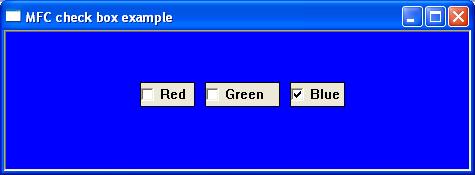
A checkbox is a small square box with an associated descriptive label. Checkboxes function as a toggle switch switch between selected and de-selected. Clicking the box once causes a checkmark to appear; clicking again toggles the checkmark off. The CButton member functions GetCheck() and SetCheck() retrieve and modify the check state of a checkbox. The ON_BN_CLICKED message-map macro maps button click notifications to a handler function.
The following short program uses 3 checkboxes to change the window’s background colour. Selecting combinations of each produces a mixture of red, green and blue. The initial default background colour is black, while selecting all 3 buttons will produce white.
RadioButton
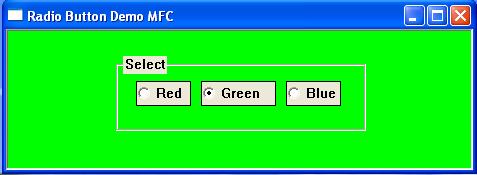
A radio button is a small circular box with an associated descriptive label. Radio buttons are normally grouped so the user can choose only one of a predefined set of mutually exclusive options. Selecting one automatically clears the previously selected button. The following short program uses three radio buttons to change the window’s background colour.
For a further reading on the CButton class
https://docs.microsoft.com/en-us/cpp/mfc/reference/cbutton-class?view=vs-2019
Static control
MFC’s CStatic class encapsulates the Windows static control. Static controls are commonly used as labels for other controls. A static control displays text, shapes and pictures such as icons or bitmaps. The static control cannot be selected, accept input from the keyboard or mouse, and does not send WM_COMMAND messages back to the parent window.
For further reading on the CStatic classes
https://docs.microsoft.com/en-us/cpp/mfc/reference/cstatic-class?view=vs-2019
Editbox
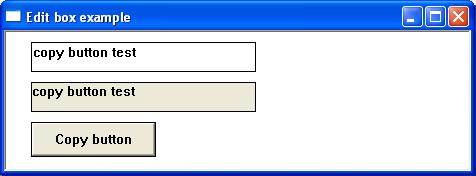
MFC’s CEdit class encapsulates the functionality of edit controls. Edit controls support both single-line and multiline text entry. They provide functions for retrieving and modifying text, selecting text, limiting the number of characters entered and responding to user editing operations. Edit controls come in two varieties: single-line and multiline,
For further reading on the CEdit class
https://docs.microsoft.com/en-us/cpp/mfc/reference/cedit-class?view=vs-2019
In the following example clicking the button title ‘set button’ changes the contents of the static box to the value of the textbox.
ScrollBar
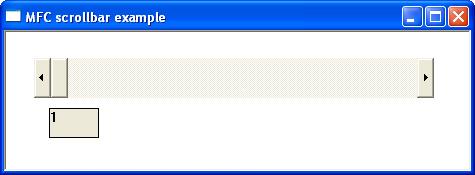
MFC’s CScrollBar class encapsulates scroll bar controls. A scroll bar is an object that allows the user to adjust a particular value, a section of the window or view, by navigating either left and right or up and down. A scroll bar appears as a long bar with a small button at each end. Between these buttons, there is a moveable bar called a thumb. Scrollbars exist in two forms: the standard scroll bar and the scroll bar control. The standard scroll bar is an integral part of a window, whereas the scroll bar control exists as a separate control
For further reading on the CScrollBar class
https://docs.microsoft.com/en-us/cpp/mfc/reference/cscrollbar-class?view=vs-2019
The following short program demonstrates a horizontal scrollbar control. The scrollbar position is shown in the static class.
Listbox
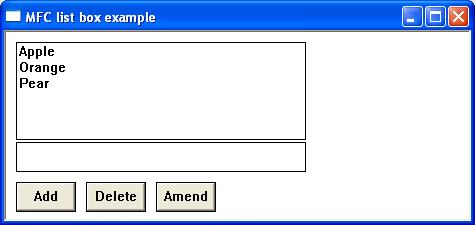
MFC’s Clistbox Class encapsulates the Windows listbox control. A listbox displays a list of selectable items in a scrollable box. Users can select or deselect one or more of these items by clicking the appropriate line of text. For further reading on the CListBox class
https://docs.microsoft.com/en-us/cpp/mfc/reference/clistbox-class?view=vs-2019
The following short program creates a listbox and then adds a limited number of selectable items. Clicking an item copies the selected list box item into the static control.Clicking the add button adds a new record, clicking the amend button amends the selected listview value, and clicking the delete button deletes the selected listbox item.
Combo Box
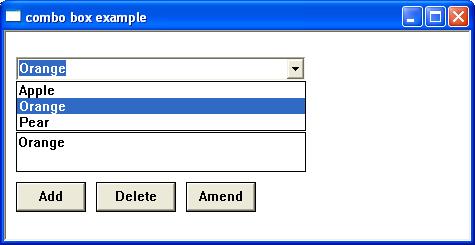
MFC’s CComboBox class encapsulates the functionality of the ComboBox controls. A combo box or drop-down list is a combination of a listbox and editbox, allowing the user to either type a value directly or select a value from the list. Depending on the style selected, a combo box may permit the user to type a value directly, select only from the list, or use an editable drop-down list
For further reading on the CComboBox class
https://docs.microsoft.com/en-us/cpp/mfc/reference/ccombobox-class?view=vs-2019
The following short program displays a dropdown list or combo box. Items can be added deleted or amended using the textbox and the appropriate button.